





If you’re thinking about spending some of your marketing funds on ads to reach your target audience, you’ll want to spend your money in the right place in order to get the best results. As of 2025-2026, Google now processes over 16.4 billion search interactions daily1 and attracts approximately 275 million unique visitors in the United States alone, with over 5 billion users globally2. And with traffic like that, it’s difficult to imagine a better place to advertise for your business.
You might be wondering if Google advertising works. As Google states, People are constantly turning to Google Search for answers─what to do, where to go, what to buy, how to do things. Your keywords help you show up when people search for what you offer.”3
20+ Years of Experience Running Google Ads
Personally, I’ve been using Google Ads since 2005 (yep, over 20 years ago!) when I worked in-house as an E-commerce Marketing Manager. I built the company’s e-commerce store and excitedly sent out an email saying “If you build it, they will come!” only to find out that… no, they won’t! People don’t just find a brand new website without spending time working on SEO, so I discovered that Google Ads was the best way to immediately jump to the top of the search results and start getting sales. Those sales, in turn, can fund SEO efforts that build long-lasting organic search traffic.
However, even with good SEO traffic, Google Ads still has a role! The Search Engine Results Page (SERP) now contains so much ad space at the top that the “number one” organic search result is quite far down the page, especially on mobile! Grabbing that top-of-page real estate in addition to having an organic presence (combining PPC and SEO) is the best way to ensure maximum exposure for your brand in search.
What is Google Ads (Formerly Known as Google Adwords)?
Google Ads, formerly known as Google Adwords, is a platform where you can pay, typically on a per-click basis (PPC = “Pay Per Click”) to have your website appear at the top of search results, or pay per impression (CPM or “cost-per-mille” which means cost per thousand impressions) to have an ad appear for your company on other websites in the Google Display Network (GDN)4.
The platform launched in October 2000, just two years after Google burst onto the internet scene. In 2018, the advertising platform was rebranded as Google Ads. Google Ads has become increasingly popular as the go-to place for digital advertising for businesses across nearly all industries.
Google Ads allows you to serve ads to your target audience, whether targeting them by the keywords they search so that you appear on the Google Search Engine Results Page (SERP), or on other websites where your ideal customers might be thinking about your products and services. The Google Display Network can help you “reach people as they browse millions of websites, apps, and Google-owned properties (such as YouTube and Gmail).“5
How Does Google Ads Pricing Work?
Google Ads for search is a pay-per-click (PPC) model, which means that marketers target specific keywords on Google and make bids on the keywords, competing with other businesses also targeting those keywords. The bids for keywords are “maximum bids” or the max you’re willing to pay for an ad. For example, if you place a maximum bid of $5 and Google determines that your cost per click is $3, then you’ll get that ad placement. If Google determines that the ad is more than $5 then you won’t get the ad placement you bid on.
How to Use Google Ads to Promote Your Business
Getting started with using Google Ads can be quick and easy. The Google Ads platform takes you through each step and provides tips along the way.
When using Google Ads, here are some best practices to ensure your Google Ads are set up properly.
Set a Budget
When using Google Ads, you can choose to set a daily maximum budget for your ads. With this option, you’ll never have to worry about spending more than your specified amount for each ad campaign per day. This budgeting option can help you tightly control your budget for your digital ad campaigns.
Select a Bidding Strategy
There are various types of bidding options marketers can choose from as part of the Google Ads setup when using Google Ads, including:
Smart Bidding Strategies
- Target CPA (Cost-Per-Acquisition): Sets bids to get as many conversions as possible at a specific target cost.
- Target ROAS (Return on Ad Spend): Sets bids to maximize conversion value while reaching an average target ROAS.
- Maximize Conversions: Automatically sets bids to get the most conversions within your daily budget.
- Maximize Conversion Value: Sets bids to gain the highest conversion value within your budget.
- Enhanced CPC (ECPC): Automatically adjusts manual bids to maximize conversions.
Other Bidding Strategies
- Maximize Clicks: Automatically sets bids to get the highest number of clicks within a budget.
- Target Impression Share: Automatically sets bids to show your ad on the search page (anywhere, top, or absolute top).
- Manual CPC Bidding: You set the maximum cost-per-click for your ads.
- CPM (Cost-per-Thousand Impressions): You pay based on the number of impressions (views) your ads receive (mostly for Display).
- tCPM (Target Cost-per-Thousand Impressions): Sets the average amount you are willing to pay for every thousand impressions.
- vCPM (Viewable Cost-per-Thousand Impressions): You pay only when your ad is measured as viewable.
- CPV (Cost-per-View): You pay for video ad views and interactions.
Choose a Campaign Type
- Campaign Type. As part of the Google Ads setup process, you’ll have to decide what type of Google Ads you want to launch:
1. Search Campaigns
Search Ads are text ads that are placed above and below Google search engine results. Responsive Search Ads allow you to create multiple versions of ad headlines and copy (15 versions of ad headlines and 4 variations of ad copy) when using Google Ads, so Google can select the best-performing ads to display to users.
- Format: Text-based ads.
- Placement: Google Search Results Pages (SERP).
- Best For: Capturing high-intent users actively searching for specific products or services.

2. Display Campaigns
The Google Display Network (GDN) is a network of websites that allow space on their webpages for Google Ads. These ads can be images, videos, or text and are displayed with content that matches your selected keywords and/or audience targeting.
- Format: Visual banner or image ads.
- Placement: Over 3 million websites, apps, and Google-owned properties (Gmail, YouTube).
- Best For: Brand awareness and retargeting users who previously visited your site.

3. Video Campaigns
- Format: Video ads.
- Placement: YouTube and the Google Display Network.
- Best For: Driving awareness, consideration, and conversions through engaging video content.

4. Performance Max (PMax) Campaigns
- Format: Combined assets (text, image, video).
- Placement: Across all Google channels (Search, YouTube, Display, Discover, Gmail, Maps).
- Best For: Maximizing conversions across all channels using automation.
5. Shopping Campaigns
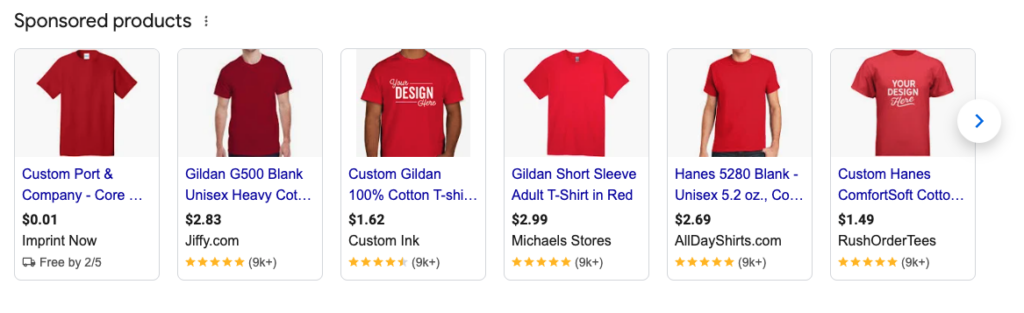
- Format: Product listing ads (image, price, title).
- Placement: Google Shopping tab, Search, and Display Network.
- Best For: E-commerce retailers looking to sell physical products.
6. App Campaigns
- Format: Automated text, image, and video ads.
- Placement: Google Search, Play Store, YouTube, and Display Network.
- Best For: Driving app installs and in-app actions.
7. Demand Gen Campaigns
- Format: Visual, immersive ads (short-form video, image).
- Placement: YouTube (Shorts/Feed), Discover, and Gmail.
- Best For: Generating demand among visual-first audiences.
8. Local Campaigns
- Format: Location-focused ads.
- Placement: Google Maps, Search, YouTube, and Display Network.
- Best For: Driving foot traffic to physical store locations.
9. Smart Campaigns
- Format: Automated, simplified text or image ads.
- Placement: Google Search and Maps.
- Best For: Small business owners needing a quick, easy-to-manage setup.
Set Location Targeting
During the Google Ads setup process, you’ll need to select the geographical area where you want your ads to appear. If you want to use Google Ads to advertise for a physical business location, you’ll want to select a reasonable radius around your store’s location.
If you’re promoting your business’s products and services that cater to a specific area, your location should include the towns, counties, states, and/or countries you want to target.
Your chosen locations will play a role in your ads’ placement. If you have a storefront shop in New York, someone searching for the same kind of store in California won’t see your ad because Google’s objective is to show the most relevant ads to searchers.
Select Your Keywords
When a Google user conducts a search, Google returns a range of results that match the searcher’s intent. They conduct these searches via keywords, which are words and phrases that align with what a searcher wants to satisfy their query. For your ads, select keywords based on the types of search queries you want your ads to display for.
As stated earlier, to successfully use Google Ads, your keywords need to match the searcher’s intent as much as possible so your ads show up for relevant searches. Google matches your ads with what it deems to be applicable search queries based on your selected keywords. Each ad group that you create within your ad campaign will target a set of keywords. Google will display your ads based on those selections.
Tip: Search Terms vs. Keywords
This is an important distinction from “Keywords.” “Search Terms” are the exact key phrases the user typed in when your ad was shown to them. It’s very important to know this, because these can be quite different from what you entered as a “keyword” to bid on. That’s where “match type” comes in.
Set Keyword Match Type
As part of your Google Ads search campaign setup, you’ll need to designate match types to tell Google whether you want to match a search query exactly or if your ad should be shown to anyone performing a query for semi-related terms. Match type is a term that refers to the controls you can set to determine how tightly or how loosely you want the keyword you bid on to align with the exact search term the user types in. Think of it as synonym and word order control.
Keyword Match Types Overview
- Broad Match: The default setting. Allows for synonyms, misspellings, and related topics.
- Syntax: keyword (no special characters).
- Example: “running shoes” may show for “sneakers”, “jogging shoes”, or “buy tennis shoes”.
- Phrase Match: Provides a balance of reach and relevance, showing ads for queries that include the meaning of your keyword (in any order).
- Syntax: “keyword” (in quotation marks).
- Example: “running shoes” may show for “buy running shoes” or “comfortable running shoes”.
- Exact Match: Offers the highest precision. It allows for some very slight variation, but not much.
- Syntax: [keyword] (in brackets).
- Example: [running shoes] may show for “running shoes” or “run shoes”.
Set Negative Keywords
This is a list of keyword terms you don’t want to rank for. Generally, negative keywords are semi-related to your intended search terms, but aren’t keywords you want to rank for. Think of them as terms you’d want to block. Common examples include “free,” “cheap,” or “inexpensive” for brands that don’t compete on price.
Negative keywords are incredibly important when using broad or phrase match, as they keep you from spending money on irrelevant clicks.
Write Your Ads
One of the main aspects you’ll need to master while using Google Ads is creating effective headlines and ad copy. Your headlines and ad copy can make the difference between whether or not someone clicks on your ad or your competitor’s ad. Your ad copy needs to match your target audience’s intent, align with your keywords, and address your audience’s pain points.
A tight match between your keywords, your ad copy, and the words on your landing page can all improve Ad Rank and, in turn, decrease your CPC (cost-per-click).
Set Up Ad Extensions
Extensions. Ad Extensions allow you to include additional information in your ads when using Google Ads. There are a variety of extension types.
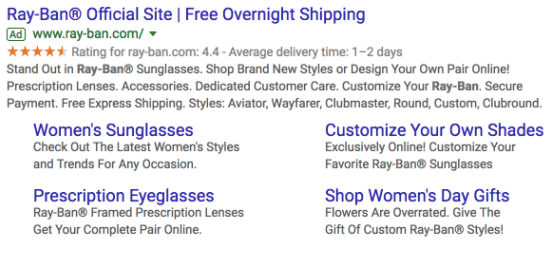


- Sitelink Extensions: Sitelink Extensions allow you to provide additional links to your website so users have more of a reason to click on your ads.
- Callout Extensions: Highlight unique selling points or key features (e.g., “Free Shipping,” “24/7 Support”).
- Structured Snippet Extensions: Showcase specific aspects, such as product types, brands, or service catalogs.
- Call Extensions: Call Extensions allow you to incorporate your phone number into your ads so users have another way to instantly contact you.
- Location Extensions: Include your store/business location and phone number within your ad so Google can show searchers where to find your business. This extension works really well with search queries for businesses “… near me.”
- Image Extensions: Add relevant, small visual images to text ads, increasing engagement.
- Lead Form Extensions: Enable users to submit their contact information directly within the search ad.
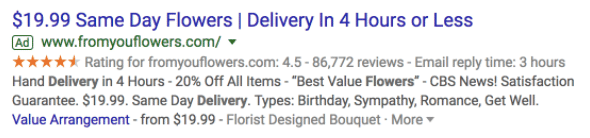
- Promotion Extensions: Highlight special offers, sales, or discounts. These are ideal if you’re running a promotional campaign when using Google Ads. It can entice users to click on your ad over similar ones from your competitors.
- Price Extensions: Display specific products/services and their prices, allowing users to browse directly.
- App Extensions: App Extensions provide a link to an app download for users on mobile devices. These extensions prevent users from having to perform another search to find the app in their App Store.
- Affiliate Location Extensions: Help users find retail chains that sell your products.
- Seller Rating Extensions: Show automated, aggregated ratings of your business.
Measuring The Performance of Google Ads
Regularly monitoring the performance of your Google Ads campaigns is hands-down the most important aspect of running successful Google Ads campaigns. “Set it and forget it” should NEVER be part of your PPC strategy. Regularly measuring results and tweaking your campaign accordingly is the only way to ensure that you don’t waste your precious ad spend.
But first, you must ensure that you are set up to collect the right data for this purpose.
Setting Up Performance Measurement for Google Ads
- Ensure that you have Google Analytics 4 (GA4) installed on your website.
- Link your GA4 account to your Google Ads account.
- In the Admin section in your GA4 property, find Product Links > Google Ads Links, click Link, and choose your Google Ads account.
- Set up Autotagging in Google Ads.
- Click the Admin icon in Google Ads, click Account settings, and select the Auto-tagging section.
- Create conversion actions (“key events”) in GA4.
- In the Admin section in your GA4 property, go to Data display > Events, find your desired event, and toggle the “Mark as key event” toggle.
- Import key events into Google Ads.
- On the homepage in the GA4 account, navigate to the Left menu > Advertising.
- On the next page, navigate Conversion management > New conversion.
- Click New conversion, select the Google Ads account to import conversions into, and click Next.
- Select the conversion you want to import, and choose the conversion category.
- Click Next and Save.
- (Optional) Create reports in Looker Studio for an easier way to monitor your metrics.
The Most Important Google Ads Performance Metrics
ROI Metrics
- Conversions & Conversion Rate: The number of desired actions (sales, leads, sign-ups) and the percentage of clicks that complete them, showing campaign effectiveness. A high conversion rate means your landing page presents a seamless user experience that matches the intent of your ad.
- Cost Per Conversion/Acquisition (CPA): How much you pay for each valuable action.
- Return on Ad Spend (ROAS): For e-commerce sites, this is revenue generated for every dollar spent on ads.
Engagement & Reach Metrics
- Impressions: How often your ad was shown, showing your campaign’s visibility.
- Click-Through Rate (CTR): Percentage of people who saw your ad and clicked it, indicating ad relevance and appeal. (This is calculated by dividing the number of clicks by the number of impressions as a percentage.)
- Clicks & Cost Per Click (CPC): Number of visits to your site and the average cost for each visit, reflecting traffic volume and cost.
Quality Score & Ad Rank
In addition to the above metrics, it’s important to monitor your Quality Score as that impacts your Ad Rank, which, in turn, impacts your ad position and cost-per-click (CPC).
Quality Score
Google takes the bid amount and pairs it with an assessment of your ad called a Quality Score, which, according to Google, is “an estimate of the quality of your ads, keywords, and landing pages. Higher quality ads can lead to lower prices and better ad positions.” The Quality Score ranges from 1-10, with 10 being the best score. The higher your score, the less you’ll have to spend on your ads.
Ad Rank
When using Google Ads, the Quality Score combined with your bid amount creates your Ad Rank, which is the position your ads will appear on the search engine results page (SERP). The higher your AdRank, the more your ad will be shown to users. This increases the probability of users clicking on your ad. Your AdRank is determined by your maximum ad bid multiplied by your Quality Score.
Google Ads Best Practices: Where People Get it Wrong
Those who manage their own Google Ads account, rather than having it managed by trained professionals, typically make a lot of the same mistakes. For example, they may assign one single generic ad to an entire keyword group, or they may be linking all their ads to the homepage instead of linking to the page that’s most relevant to the keyword.
Those are critical mistakes, but a lot of DIYers are oblivious to the fact that they’re not following best practices. Moreover, if they’re completely new to Google Ads, they might not even know that there are best practices to follow. Google doesn’t exactly hold your hand, telling you what to do and what not to do when creating a campaign; you have to rely on your own knowledge of the platform.
Frustrated advertisers often believe that if they just throw more money at Google, they’ll be able to outrank competitors. Paying more money can only get you so far. First of all, it is very challenging to outrank a competitor for their own brand name. Second, blowing your advertising budget on Google Ads is an inefficient way to rank higher, and it will be far more difficult to turn those precious advertising dollars into positive ROI.
Why Work with a PPC Agency?
PPC agencies are highly skilled at following Google Ads best practices, especially if they are a Google Certified Partner. At Pam Ann Marketing, we don’t want to see any advertiser paying more than they should for the results they want to achieve. As a Google Certified Partner agency, we know what it takes to bring your costs down while bringing your rankings up.
Our Google Ads Management Services
Here at Pam Ann Marketing, we’ve been providing professional Google Ads management services for all of our 15+ years in business. We’ve worked with nearly all industries and have a solid track record of results. Click here to learn more about our Google Ads management services.
Our Google Ads Training Services
We also offer Google Ads training! Click here to learn more about our Google Ads training and coaching.
Get a Free Google Ads Audit!
To see what we can do for you and your Google Ads account, we invite you to contact us for a completely free Google Ads audit. We’ll provide a report on what you’re doing well and where there is room for improvement. We look forward to helping you get more leads through Google Ads without breaking the bank.
- https://www.demandsage.com/google-search-statistics/ ↩︎
- https://www.demandsage.com/google-search-statistics/ ↩︎
- https://business.google.com/us/ad-solutions/search/ ↩︎
- https://support.google.com/google-ads/answer/2404190?hl=en ↩︎
- https://support.google.com/google-ads/answer/2404190?hl=en ↩︎

- How to Optimize Your Article Content for SEO and GEO/AEO - August 28, 2026
- Why All AI-SEO Studies are Flawed (and What to Trust Instead) - March 12, 2026
- How Much AI-Generated Content is Acceptable for SEO Writing? - February 25, 2026